
Up to 150 Mailboxes: Microsoft 365 Email Migration for Admins
Choose your migration method by source system, mailbox count, and coexistence needs: cutover or express suit small organisations under roughly 150 mailboxes, staged or minimal hybrid fit medium estates, full hybrid handles large or complex coexistence, and cross-tenant processes cover mergers and acquisitions. IMAP and PST import cover niche or legacy scenarios. Run the Mail Migration Advisor before committing to a path.
TL;DR:
- Organizations with more than 150 mailboxes or complex coexistence needs should consider hybrid migration, while smaller ones can often use cutover or staged methods.
- Cross-tenant migrations, common during mergers or acquisitions, require extensive preparation, including Azure AD setup, attribute mapping, and usually more than a weekend to complete.
- A detailed pre-migration checklist—including DNS updates, licensing, and PST inventory—is vital to avoid support delays and ensure smooth execution.
- Native Microsoft tools generally suffice for up to 2,000 mailboxes, but larger or more complex projects benefit from engaging certified migration partners or solution providers.
- Small to medium organizations can expect migration times from a weekend to several weeks, depending on mailbox volume, bandwidth, and complexity.
Table of Contents
- Microsoft 365 email migration methods: what each one moves and when to use it
- How to decide which migration path fits your organisation
- Pre-migration planning checklist and prerequisites
- Executing the migration: batches, mail flow, and go-live
- Which Microsoft tools and partners actually help
- How do you verify a migration and plan a rollback?
- Performance, limits, and realistic timelines
- Common issues and troubleshooting checklist
- Where JR Digital fits into a Microsoft 365 migration
- Get a Microsoft 365 migration set up properly, without the DIY risk
- Sources
- FAQ
Microsoft 365 email migration methods: what each one moves and when to use it
Every migration method moves a different slice of your mailbox data, and picking the wrong one is the single biggest reason projects overrun. Understanding what each method actually copies, and where it breaks down, matters more than any tool comparison.
Cutover migration moves all mailboxes from an on-premises Exchange server in one pass, including mail, calendar, and contacts. Microsoft’s documentation pitches this for smaller environments, and it works well when you can tolerate a single weekend of disruption. Mailboxes still need to exist in Microsoft 365 before you start, either created manually or through a synchronised directory, and Outlook clients need reconfiguring once the switch happens.
Staged migration moves mailboxes in batches over an extended period, which suits organisations transitioning from older on-premises Exchange versions where a single cutover weekend isn’t realistic. It only migrates mail; calendar and contact data stay behind unless you handle them separately. This method has become less common as hybrid tooling has matured, but it remains a valid choice for phased departmental rollouts.
Hybrid migration keeps your on-premises Exchange server and Microsoft 365 running side by side, with directory synchronisation and free/busy calendar sharing between them. According to Microsoft’s guidance on mailbox migration types, this is the recommended approach for medium to large organisations that need gradual migration without disrupting mail flow. Users keep working normally while admins move mailboxes in the background over weeks or months.
IMAP migration pulls mail only, no calendar, no contacts, from any IMAP-compliant mail system, including some legacy hosting providers or non-Exchange platforms. It’s a fallback option rather than a first choice. Expect to rebuild calendars and contact lists manually afterwards, which is worth flagging to end users well before migration day.
PST import brings archived or exported mailbox data into Microsoft 365 using the Import Service, which supports either network upload or shipping physical drives for larger volumes. This suits organisations consolidating old PST archives scattered across desktops, or recovering data from a decommissioned system that no longer has a live mailbox to migrate from.
Cross-tenant migration moves mailboxes between two Microsoft 365 tenants, most often during mergers, acquisitions, or divestitures. This is the most technically demanding method on the list. It requires:
- Azure AD (Entra ID) configured across both source and target tenants, with trust relationships established between them
- Familiarity with Exchange Online PowerShell and the Mailbox Replication Service (MRS), since much of the configuration happens outside the admin centre
- Pre-provisioning of MailUser objects in the target tenant before any mailbox move begins
- Careful attribute mapping, because cross-tenant migrations fail most often when source and target attributes don’t align cleanly
If your organisation is absorbing another company’s email estate, budget extra time for this preparation phase. It’s rarely a weekend job.
How to decide which migration path fits your organisation
Five axes decide your path: source mail system, mailbox count, coexistence requirements, outage tolerance, and available bandwidth. Weigh them in that order, because source system often eliminates options before you even reach mailbox count.
- Identify the source system. Exchange on-premises opens up cutover, staged, and hybrid. Google Workspace has its own automated migration flow. Anything else, including older hosted platforms, usually means IMAP or PST import.
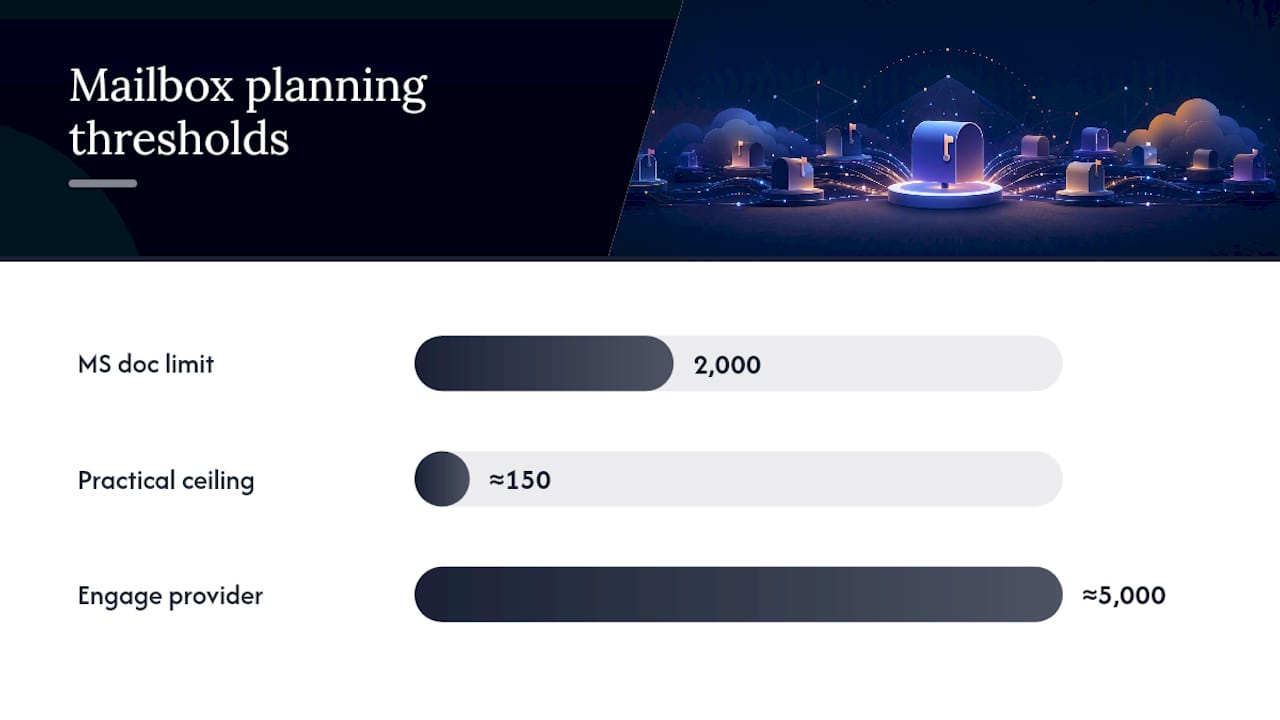
- Count your mailboxes honestly. Microsoft’s documentation states cutover can theoretically handle up to 2,000 mailboxes, but practitioner experience puts the realistic ceiling closer to 150 before performance and support overhead become painful.
- Map coexistence needs. If departments need to email each other with working calendars during a phased move, hybrid is close to mandatory. If everyone moves at once, cutover removes that requirement entirely.
- Weigh outage tolerance against bandwidth. A single overnight window works for smaller cutover jobs. Larger estates on limited internet connections need staged batches spread across weeks to avoid saturating the pipe.
- Run the Mail Migration Advisor. Microsoft’s advisor tool takes your source system, mailbox count, and coexistence answers and recommends a path, often prepopulating configuration settings you’d otherwise set up by hand.
For anything approaching 5,000 mailboxes, or migrations involving heavy SharePoint dependencies alongside mail, Microsoft explicitly recommends engaging a certified solution provider rather than running it entirely in-house. FastTrack support (included with many Microsoft 365 plans) can help with planning at scale, but it doesn’t replace hands-on migration engineering for complex directory structures.
Pro Tip: Don’t trust Microsoft’s headline mailbox limits as your planning number. Run a pilot batch with your five or six largest mailboxes first. If throughput holds up there, the rest of the migration will behave predictably. If it doesn’t, you’ve found the bottleneck before it cost you a weekend.
Pre-migration planning checklist and prerequisites
Migrations fail more often from missed prerequisites than from the migration step itself. Work through this checklist before touching a migration endpoint.
- Verify your domain and plan DNS changes. Confirm domain ownership in Microsoft 365, then map out MX record changes, Autodiscover CNAME entries, and lower your DNS TTL values days in advance so changes propagate quickly on migration day.
- Confirm licensing ahead of time. Every migrating mailbox needs an assigned licence before or immediately after migration; provisioning delays here are a common cause of “missing mailbox” panic calls.
- Check certificates and Outlook Anywhere settings if you’re running cutover or express migration from on-premises Exchange, since the migration relies on a working Outlook Anywhere (RPC over HTTP) endpoint with a valid, trusted certificate.
- Decide on directory synchronisation. Azure AD Connect (or Entra Connect, depending on your build) determines whether you’re syncing identities or creating cloud-only accounts, and this choice shapes authentication for every user afterwards.
- Create migration endpoints correctly. Endpoint settings control concurrency and connection details; get admin permissions and CSV mailbox mapping right here, because errors here surface later as failed batches rather than immediate warnings.
- Audit retention and MRM settings. Review Messaging Records Management policies on the source system before migrating, since retention tags don’t always translate cleanly across platforms.
- Inventory PST files. Locate PST archives sitting on desktops or file shares now, not after go-live, so you can fold them into the Import Service workflow or a separate cleanup project.
One limit catches almost every admin out at least once: the default single message migration size caps at 35 MB, and any mail above that threshold fails silently unless you’ve adjusted transport settings beforehand. Check for oversized attachments in your source mailboxes before migration day, not during it.
Executing the migration: batches, mail flow, and go-live
Running the actual migration is where planning either pays off or falls apart. Work through these steps in order, whether you’re using the Exchange admin centre or PowerShell.
-
Create your migration endpoint. In the Exchange admin centre, this defines connection details to the source server and sets concurrency limits, how many mailboxes migrate simultaneously. Set concurrency conservatively at first; you can always raise it once you’ve confirmed throughput.
-
Prepare your CSV mailbox list. Every mailbox you’re migrating needs an entry with the correct source and target email addresses. Typos here are the single most common cause of failed migration batches, so validate the file against your directory before uploading it.
-
Run the initial synchronisation. This copies the bulk of mailbox content across while users continue working on the source system. Depending on mailbox sizes and your bandwidth, this can take hours or days for larger batches.
-
Schedule delta syncs. After the initial sync, delta passes pick up new mail that’s arrived since. Staged, multi-pass strategies reduce user disruption considerably compared with a single long sync, particularly for larger batches where throttling becomes a factor.
-
If migrating from Google Workspace, use the automated flow where possible. The Exchange admin centre’s automated Google Workspace migration imports a JSON authentication token and configures most endpoint settings automatically, which is considerably faster than the manual PowerShell equivalent for most admins.
-
Complete the migration batch once delta syncs show a negligible remaining item count. Completing too early, while large deltas are still outstanding, is a common cause of missing recent emails after cutover.
-
Change your MX records once you’re confident the batch is complete and mailboxes are ready to receive live mail in Microsoft 365. This is the point of no return for mail flow, so schedule it deliberately rather than as an afterthought to the migration itself.
-
Assign licences to every migrated mailbox if you haven’t already, since an unlicensed mailbox in Microsoft 365 will accept mail but may not function correctly for the user.
-
Configure Autodiscover so Outlook clients can locate the new mailbox location automatically. Get this wrong and your support desk will field a wave of “Outlook won’t connect” tickets on day one.
-
Brief users on Outlook profile changes. Most desktop Outlook clients need a new profile, or at minimum a restart, to pick up the migrated mailbox correctly. A short email explaining this beforehand saves considerable helpdesk time.
Pro Tip: Run your pilot batch with a small group who understand they’re testing something, not the whole finance department on a Friday afternoon. Volunteers tolerate hiccups; unwitting test subjects file tickets.
Which Microsoft tools and partners actually help
Microsoft’s native tooling covers most migrations without needing anything else. The Mail Migration Advisor should be your starting point every time, since it recommends a path and prepopulates settings based on your source system and mailbox count. The Exchange admin centre handles endpoint creation, batch scheduling, and monitoring for Exchange, hybrid, and Google Workspace migrations. The Import Service covers PST consolidation, supporting both network upload for smaller volumes and shipped drives when you’re dealing with terabytes of archived mail. FastTrack, included with many Microsoft 365 subscriptions, offers planning support for eligible tenant sizes, though it stops short of hands-on migration engineering.
Third-party migration tools and managed partners earn their place when native tooling hits its limits. Common reasons organisations bring in additional tooling or a partner include:
- Higher sustained throughput needed to hit a tight migration window across thousands of mailboxes
- Better PST handling at scale, particularly when archives are scattered across hundreds of desktops with inconsistent naming
- Tenant consolidation work following a merger, where cross-tenant complexity exceeds in-house PowerShell confidence
- Reporting requirements beyond what the Exchange admin centre surfaces natively, especially for compliance sign-off
If you’re evaluating a third-party tool or partner, check for UK data handling and support availability, granular reporting on a per-mailbox basis, reliable mailbox mapping for complex directory structures, and configurable throttling controls that won’t saturate your internet connection during business hours. Microsoft’s own guidance reinforces this: for migrations over 5,000 mailboxes or with heavy SharePoint dependencies, engaging a certified solution provider is the recommended path rather than stretching in-house resources.
How do you verify a migration and plan a rollback?
Verification starts before you touch mail flow, not after. Build a smoke test checklist and get sign-off from a handful of pilot users covering different departments and mailbox sizes.
- Sample folder structures across several mailboxes, checking that subfolders, rules, and read/unread status carried across correctly, not just the inbox.
- Verify calendar items and permissions, particularly shared calendar access and delegate permissions, which migrate less reliably than plain mail.
- Check distribution list membership and shared mailbox access for a sample of affected users before declaring the batch complete.
- After the MX change, confirm mail is landing in Microsoft 365 within minutes, and watch for any NDR spike in the first hour, which usually signals a routing misconfiguration rather than a genuine delivery failure.
- Confirm licence assignment completed correctly for every migrated mailbox, since an unlicensed account can silently stop functioning days later.
Keep your source mail system reachable for at least a week after cutover, ideally longer for larger migrations, in case you need to recover an item that didn’t transfer.
Pro Tip: Keep a rollback plan on paper, even if you never expect to use it. Knowing exactly how to revert MX records and re-enable the old mail flow removes the panic factor if something goes wrong at 2am on migration night.
Performance, limits, and realistic timelines
The default single message size limit sits at 35 MB, configurable through transport settings if your organisation regularly sends larger attachments. Beyond that hard limit, practical mailbox ceilings matter more than Microsoft’s published maximums. Cutover is documented as supporting up to 2,000 mailboxes, but practitioners treat roughly 150 as the realistic ceiling once you account for support load and troubleshooting time.
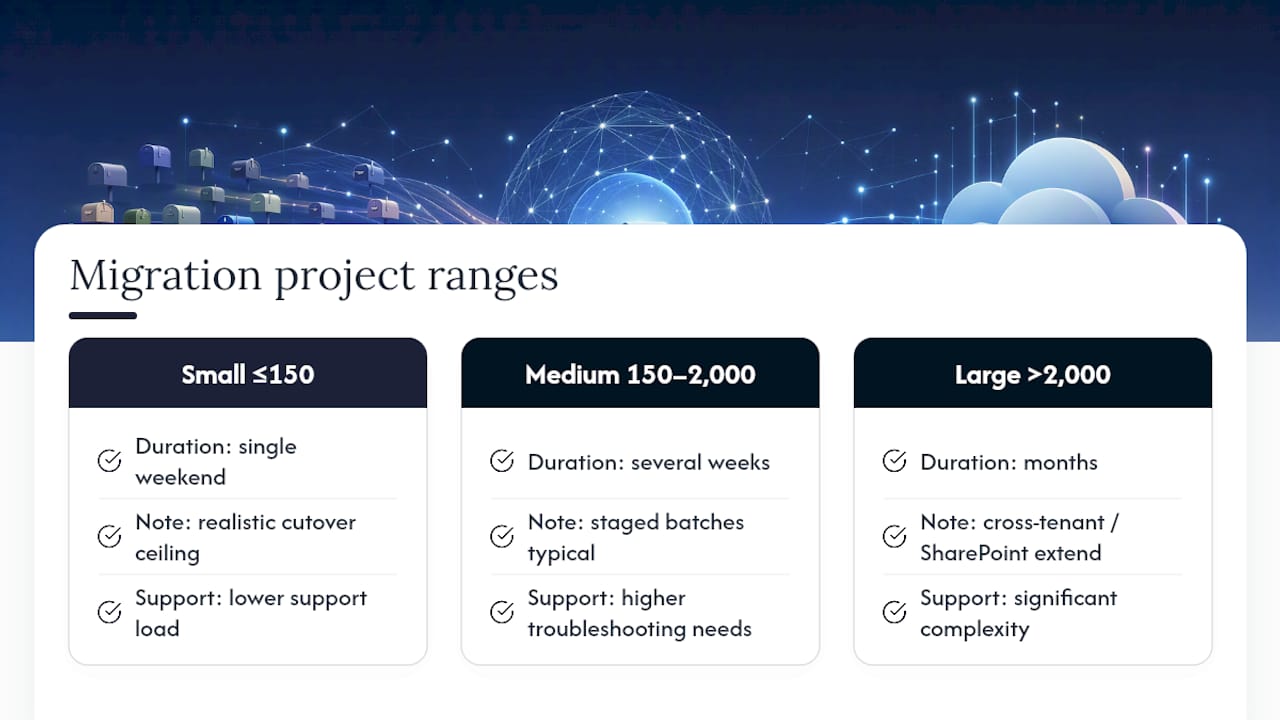
Speed depends on network bandwidth, average mailbox size, Microsoft’s throttling policies, and how many batches run concurrently. As a rough planning guide: small projects (up to roughly 150 mailboxes) often complete over a single weekend, medium projects (150 to 2,000 mailboxes) typically run across several weeks of staged batches, and large projects (over 2,000 mailboxes) can extend to months, particularly where cross-tenant complexity or heavy SharePoint dependencies are involved.
Common issues and troubleshooting checklist
Most migration failures trace back to a handful of recurring causes. Work through these first when something breaks.
- Admin permission errors usually mean the migration account lacks Application Impersonation rights or full access to source mailboxes; recheck role assignments before digging further.
- Mailbox mapping failures in cross-tenant moves often stem from missing or mismatched attributes on the target MailUser object, a leading cause flagged in Microsoft’s cross-tenant migration guidance.
- NDR spikes after an MX change typically indicate propagation delay or a misconfigured connector rather than genuine delivery failure; give it an hour before escalating.
- Outlook autocomplete losing old contacts is expected after migration and resolves as users send new mail; it’s worth a line in your user communication.
- Missing calendars or contacts after IMAP migration aren’t a fault, they’re a known limitation, since IMAP only moves mail; plan manual recreation in advance.
Where JR Digital fits into a Microsoft 365 migration
JR Digital sets up Cloud Office Setup for businesses that need Microsoft 365 configured properly the first time, including secure email and file storage. This suits organisations with limited in-house Exchange expertise, complex directory structures, or a tenant consolidation project that outstrips available capacity. Where a migration involves more than a straightforward cutover, an initial scoping conversation clarifies scope before any work begins.
— James
Get a Microsoft 365 migration set up properly, without the DIY risk
Running a migration in-house is entirely possible, but it demands Exchange expertise, spare admin hours, and tolerance for the odd 2am fire drill. JR Digital offers a different route: Cloud Office Setup at a fixed one-off price of £14,999, covering Microsoft 365, secure email, and file storage configured correctly from the outset rather than patched together under deadline pressure.
This suits businesses without a dedicated IT team, or with one stretched too thin to own a migration project alongside daily support work. Setups are built around the specific business rather than a generic template, with clear communication throughout so you know what’s happening and when. If your migration involves directory complexity, tenant consolidation, or simply not enough spare hours in-house, get in touch through the Cloud Office Setup page to arrange an initial scoping conversation and see whether it fits your timeline.
Sources
- Use the Microsoft 365 and Office 365 mail migration advisor | Microsoft Learn
- Decide on a migration path of your users’ email to Microsoft 365 | Microsoft Learn
FAQ
How do I migrate my email to Microsoft 365?
Run the Mail Migration Advisor to identify the right method for your source system and mailbox count, then follow the prerequisite checklist covering DNS, licensing, and directory sync before creating migration endpoints and batches.
Will I lose my emails if I cancel Microsoft 365?
Microsoft typically retains mailbox data for a limited grace period after subscription cancellation, after which it’s permanently deleted, so exporting or backing up mail before cancelling is essential rather than optional.
How do I transfer emails from one Microsoft 365 account to another?
Within the same tenant, use a mailbox move or PST export and import; between separate tenants, this requires a cross-tenant mailbox migration, which needs Azure AD preparation and Exchange Online PowerShell familiarity.
How long does it take to migrate a mailbox to Office 365?
Small projects of up to roughly 150 mailboxes often complete over a single weekend, while medium estates of 150 to 2,000 mailboxes typically run across several weeks of staged batches; larger or cross-tenant projects can extend to months.
When should I hire a partner instead of migrating in-house?
Microsoft recommends engaging a certified solution provider for migrations exceeding 5,000 mailboxes or involving heavy SharePoint dependencies; JR Digital’s Cloud Office Setup suits smaller organisations without in-house Exchange expertise.